
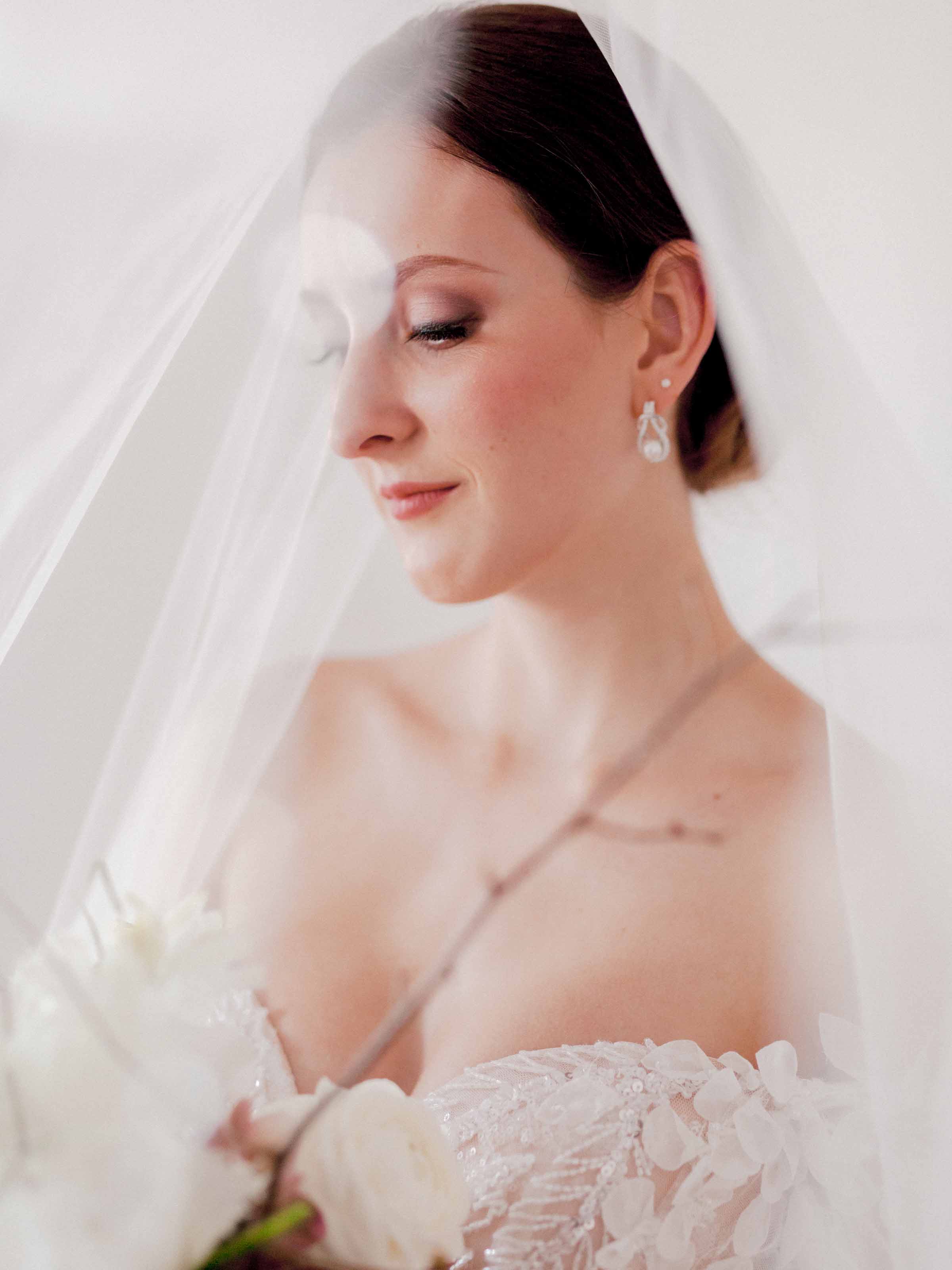
Work on one photo, or a whole folder
WhatTheEdge docks beside your photograph and shows what is open. Switch between Single Photo and Batch Export at the top.
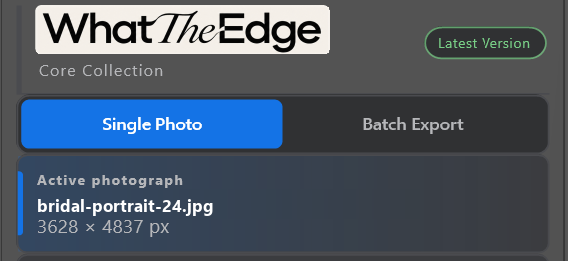


Film border plugin for Photoshop
WhatTheEdge is a Photoshop plugin that adds real scanned film borders to your digital photographs in one click, or in batch. Made for any photographer who loves the look of film. Twenty core borders, and not a pixel of your photograph changed.


The collection
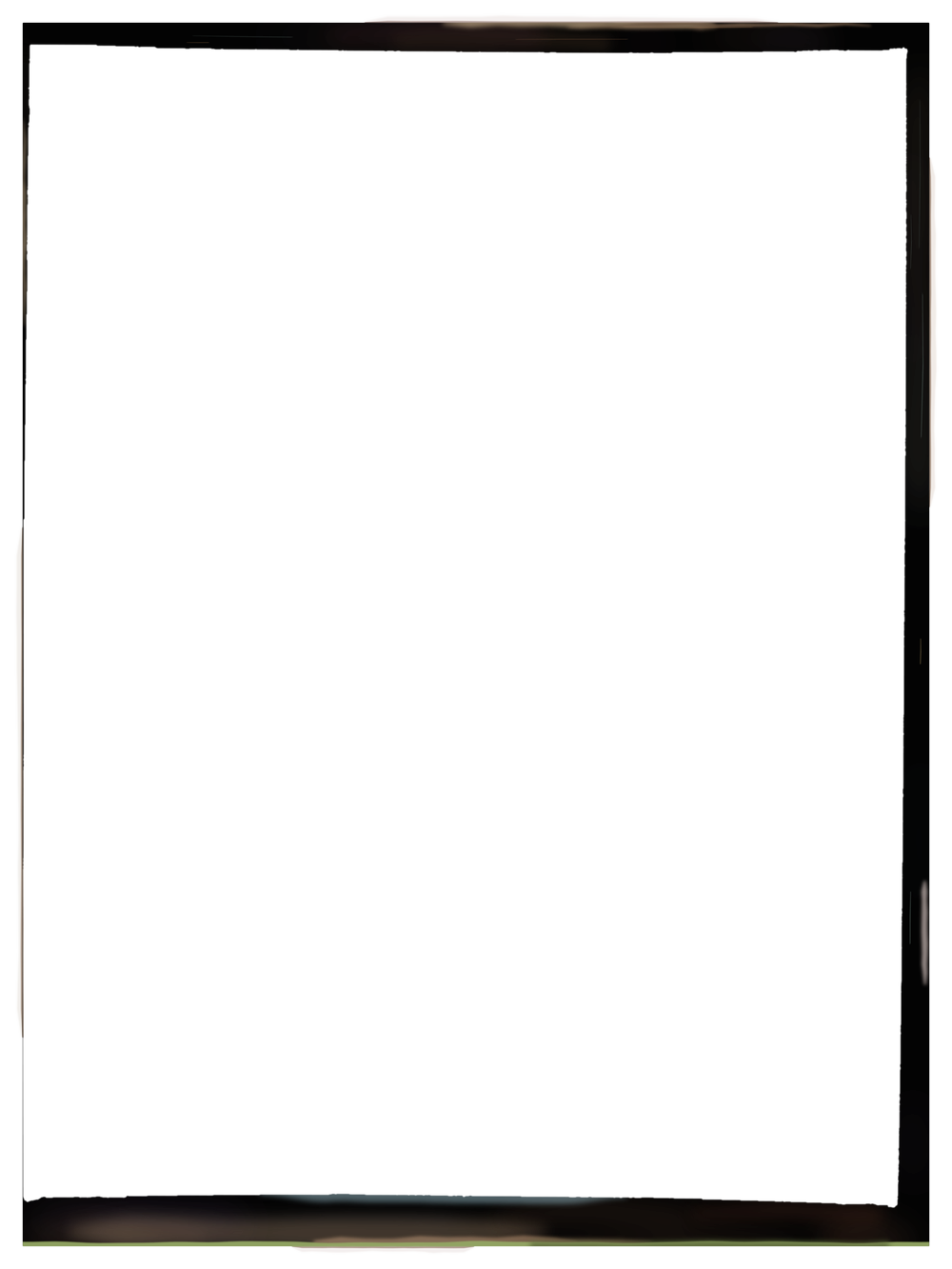
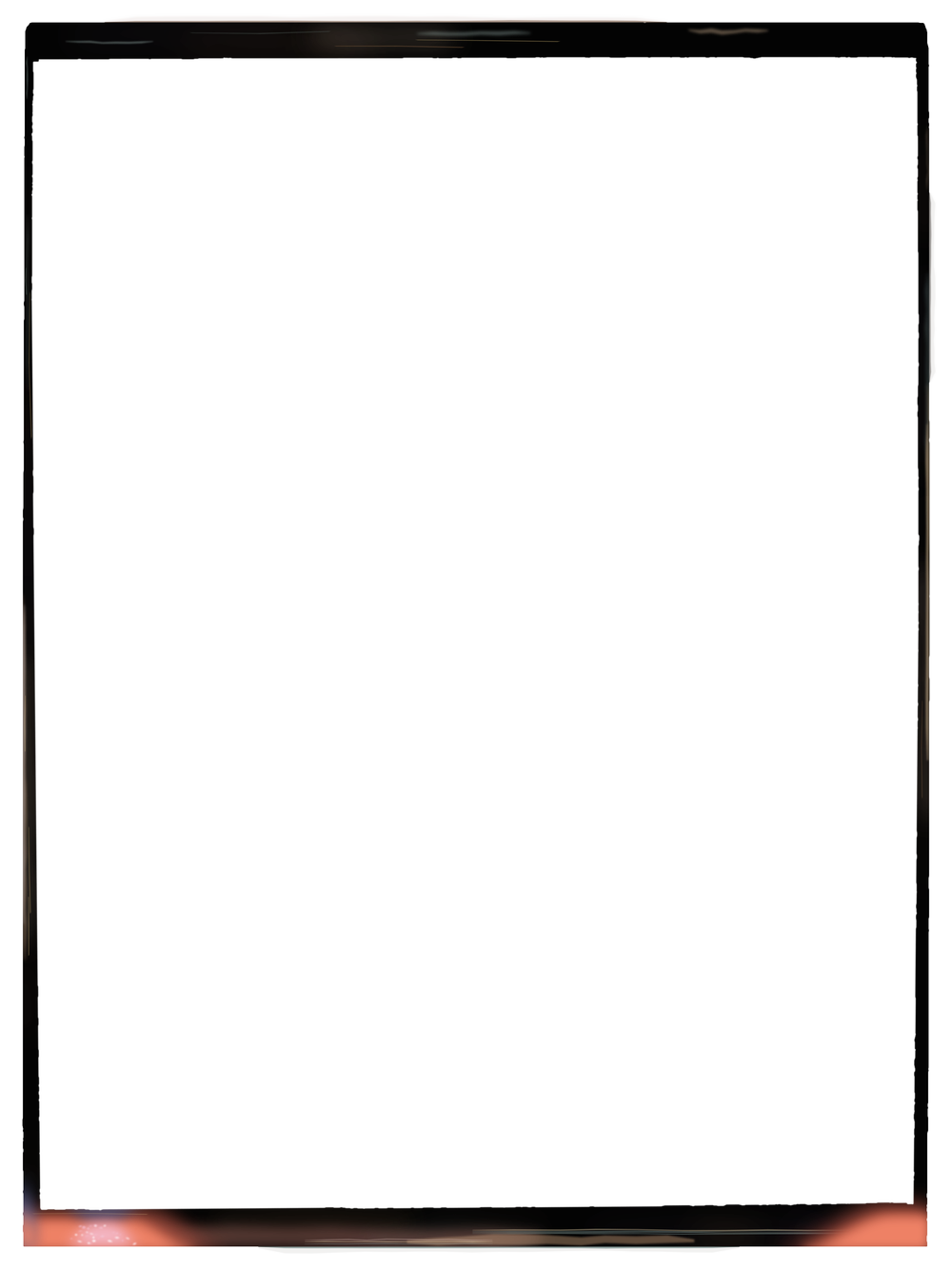
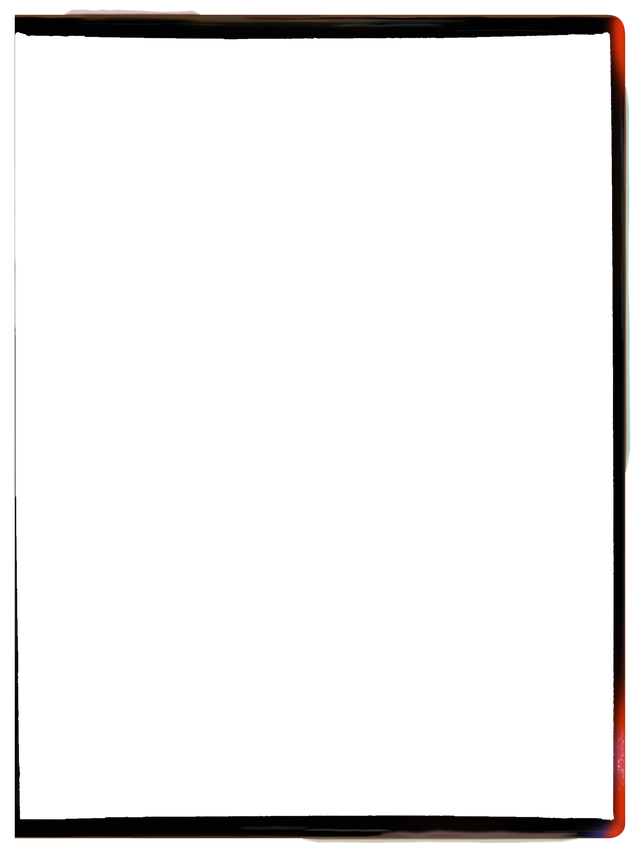
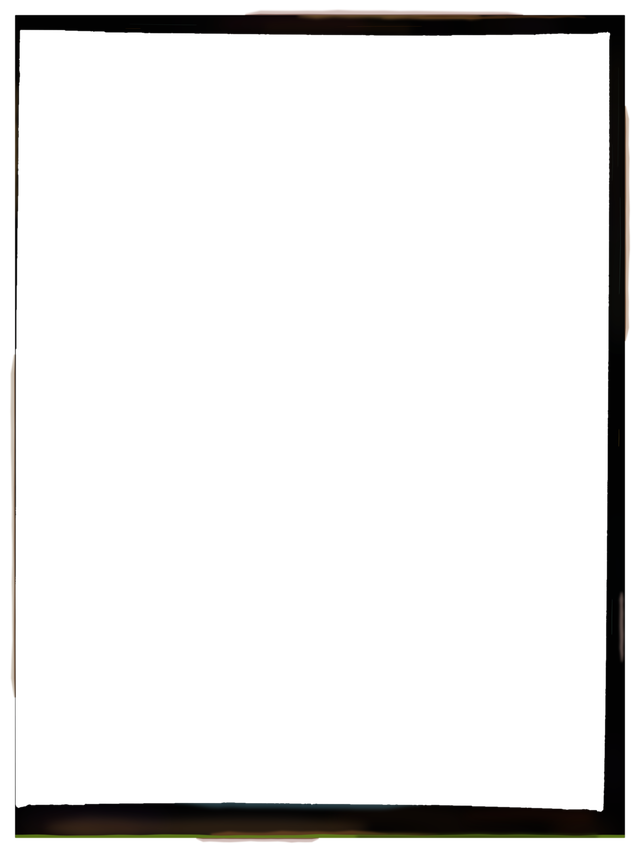
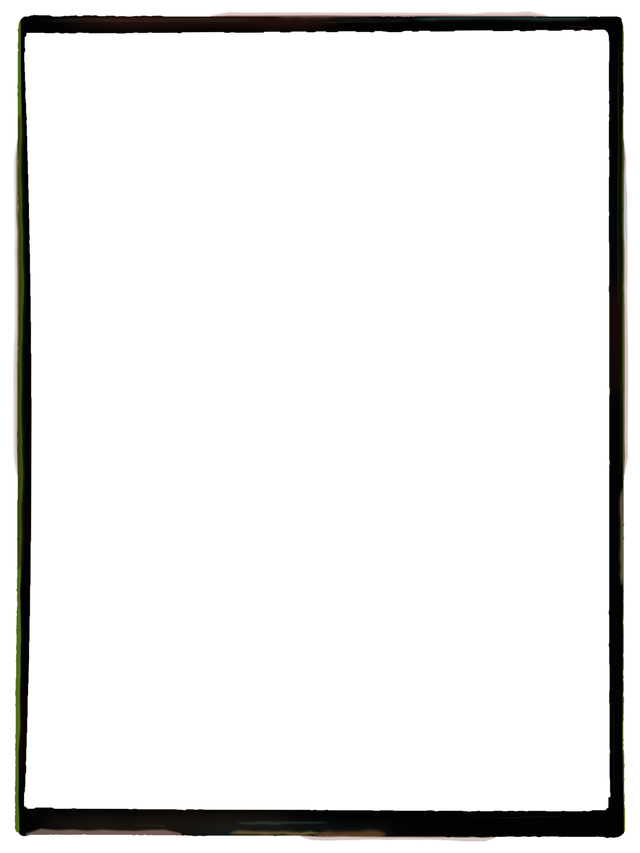
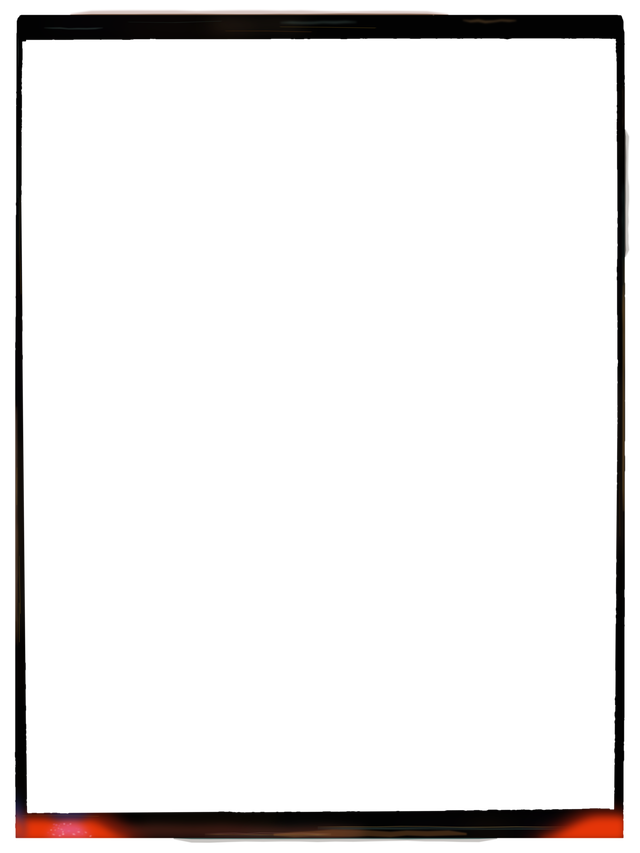
Each border fits your photograph's exact shape, vertical or horizontal.
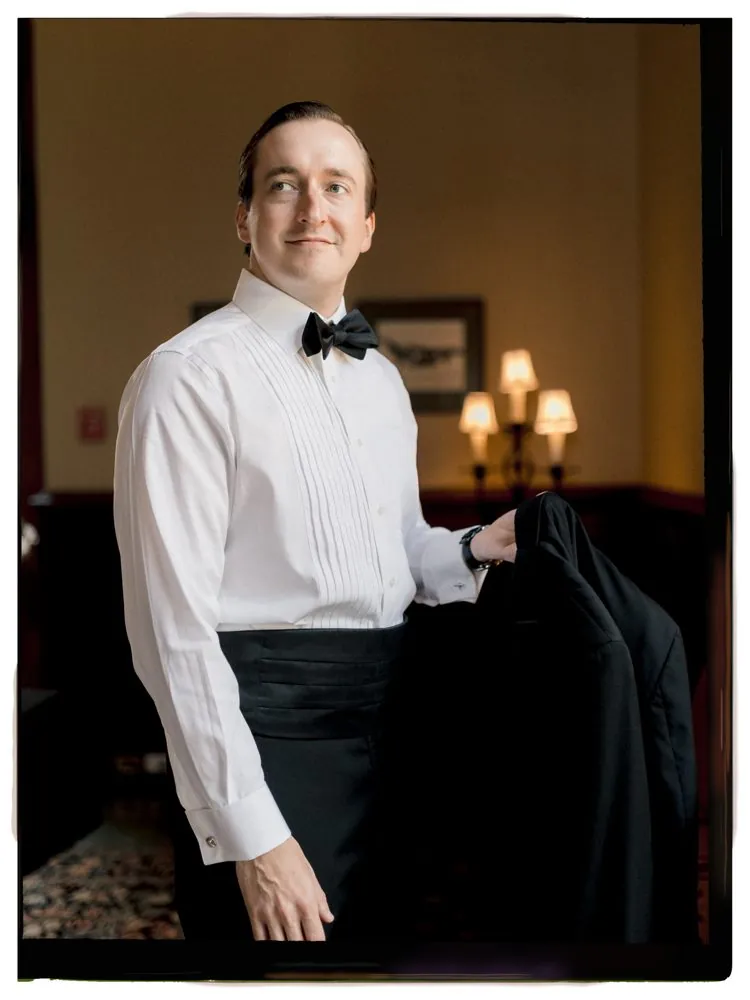
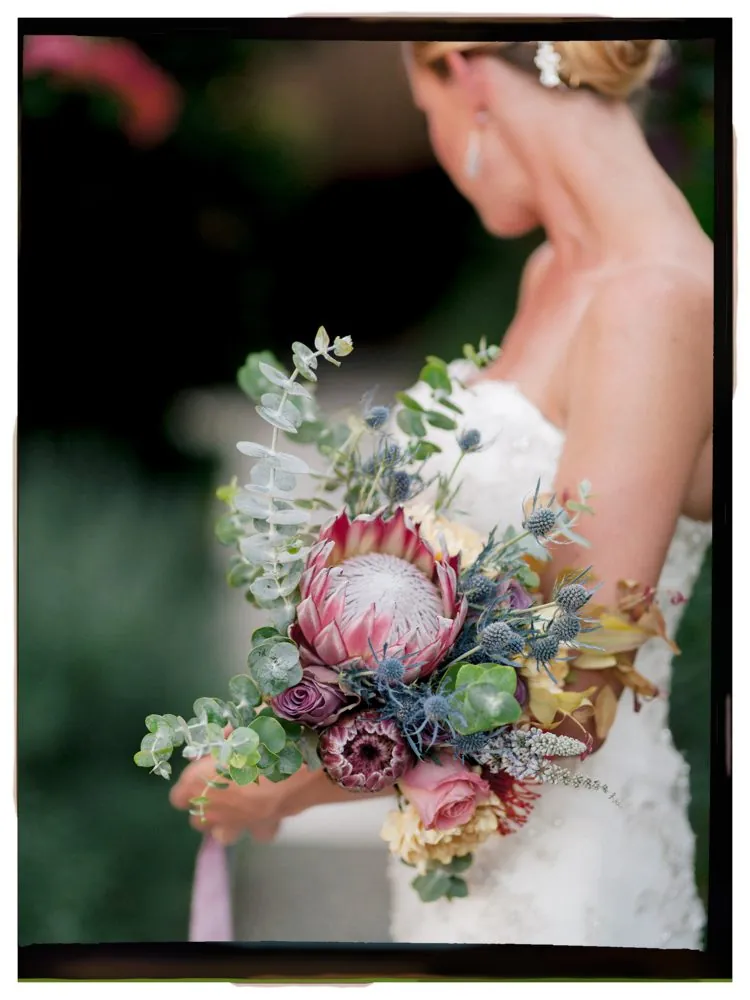
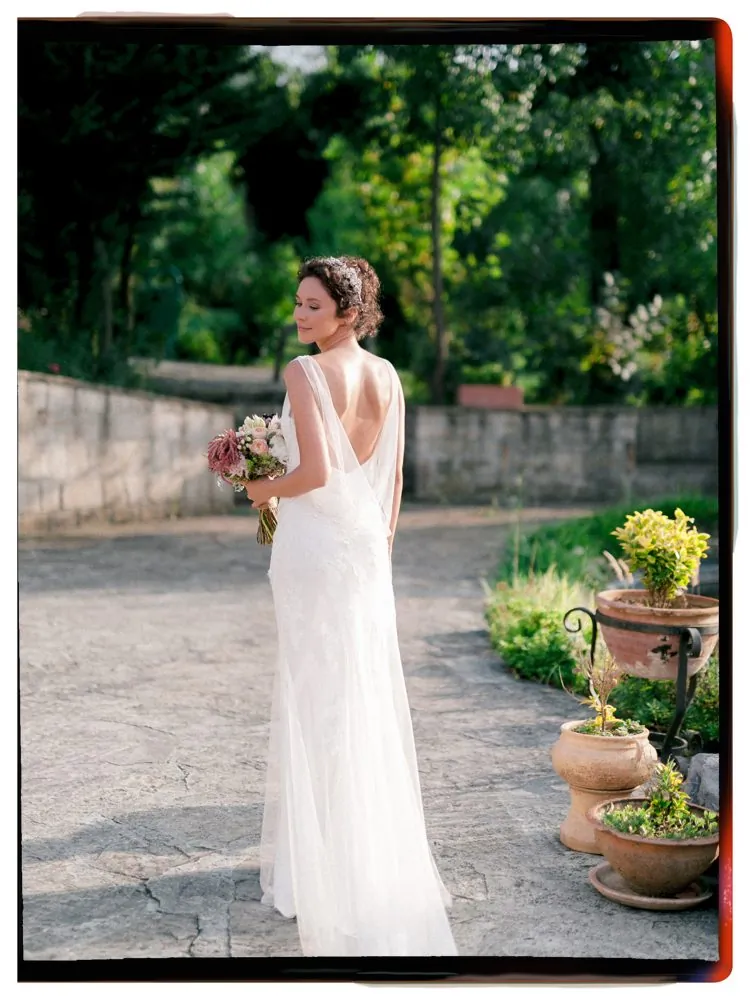
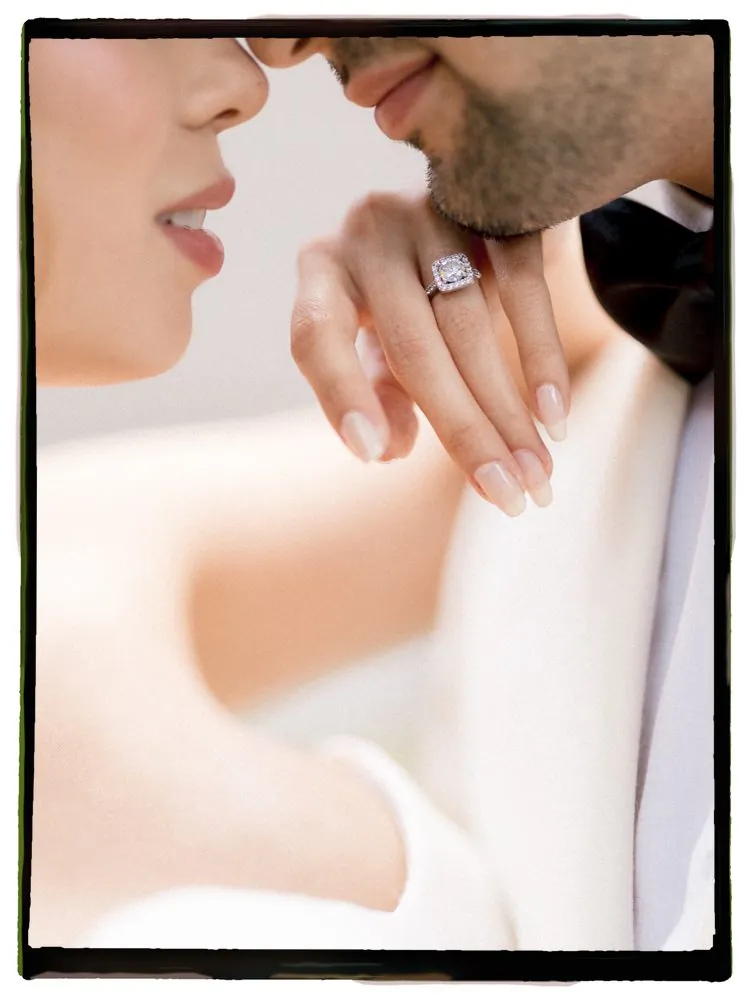
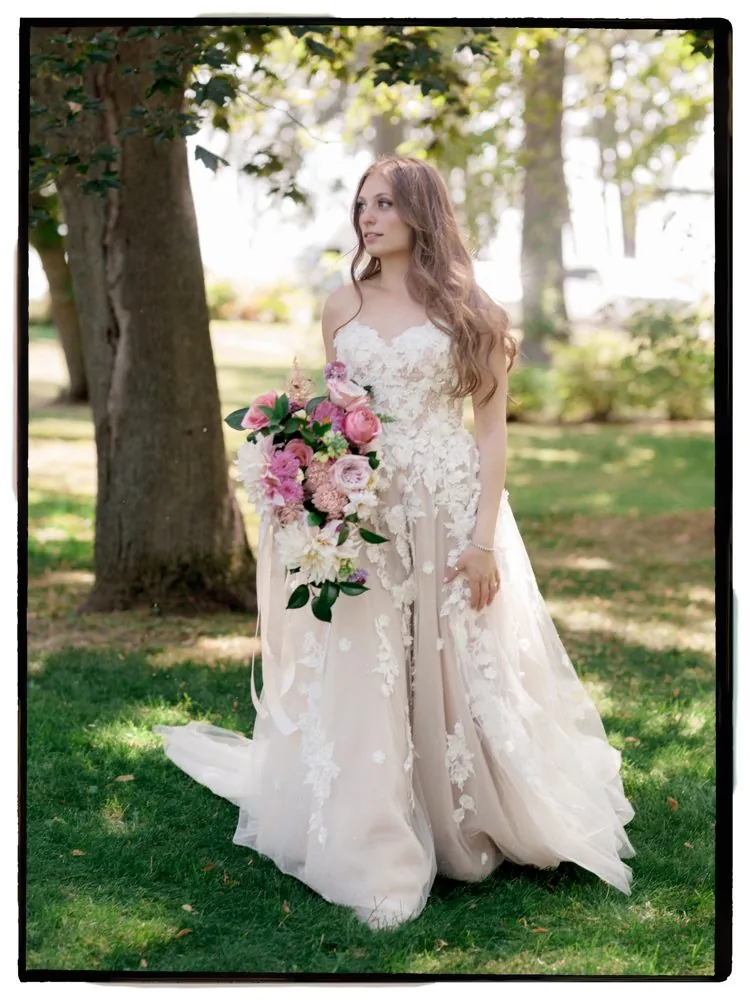
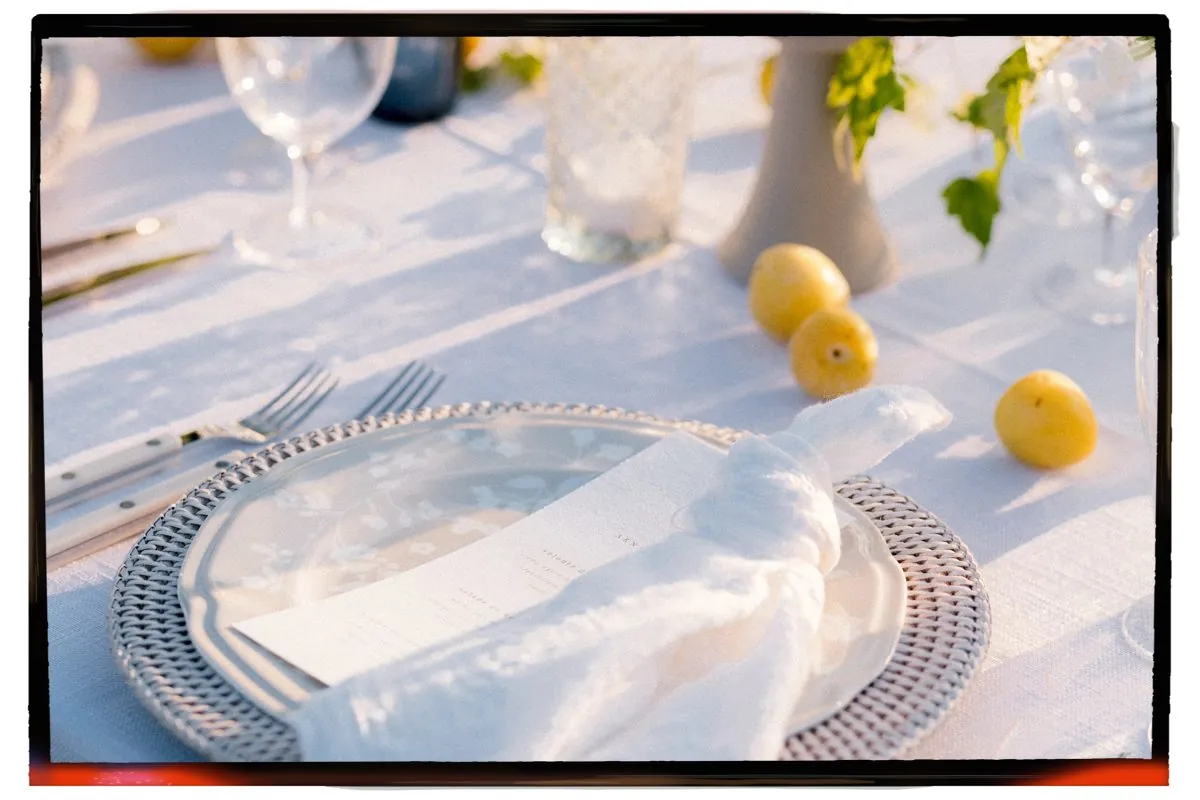
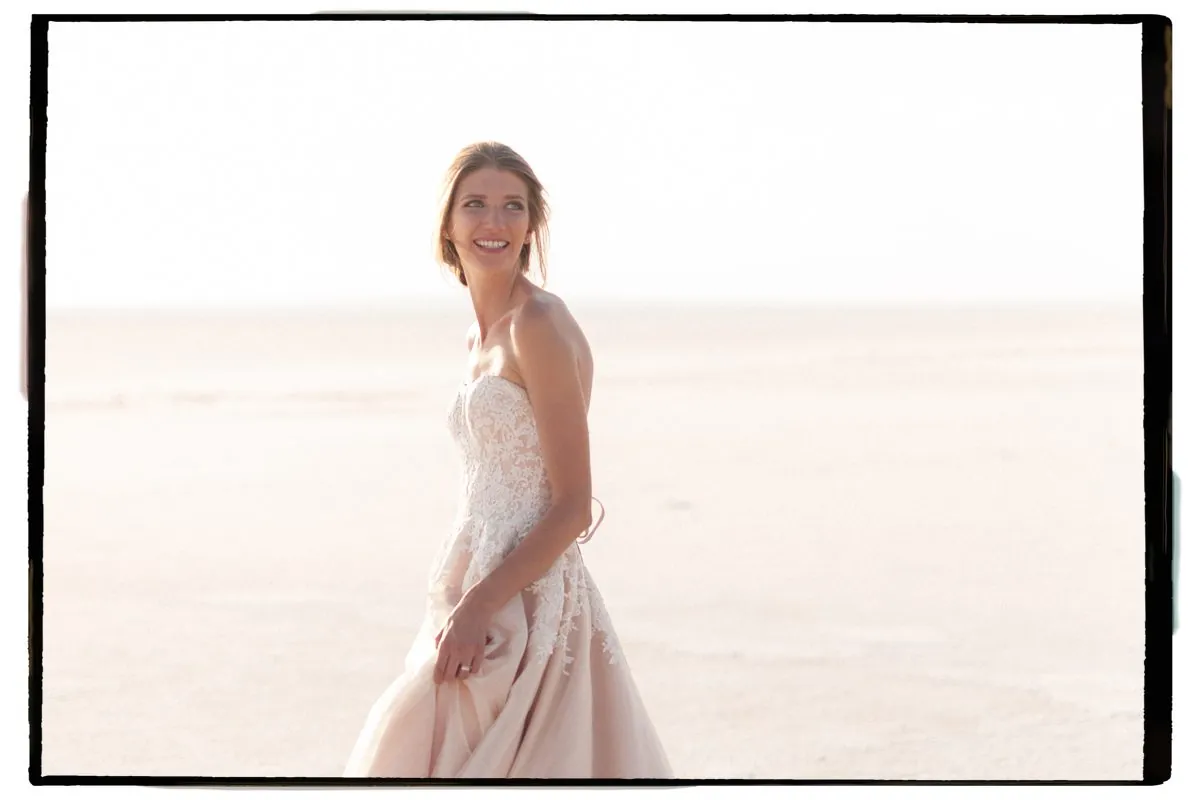
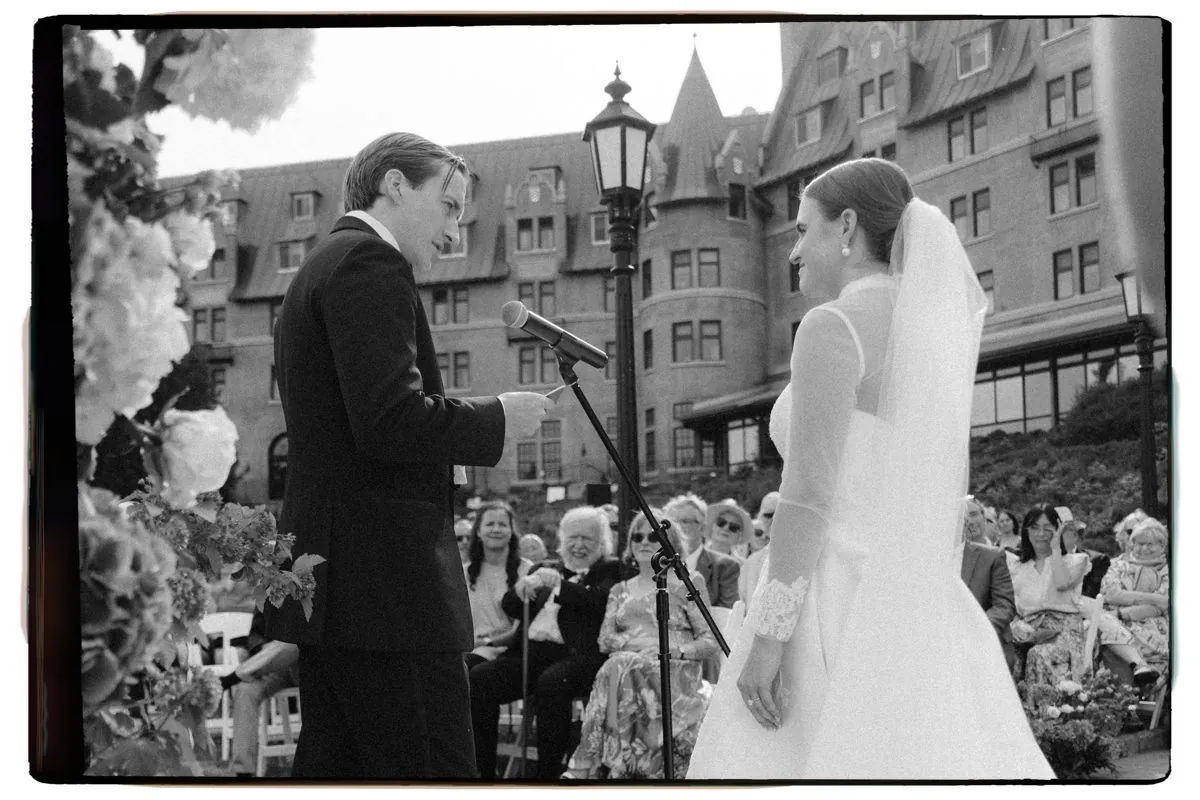
Vertical or horizontal, every border is fitted to your photograph's exact shape.
Before and after
The border is added without resizing or changing your image. Drag the line to compare. In Batch Export, every file keeps its exact pixel size.
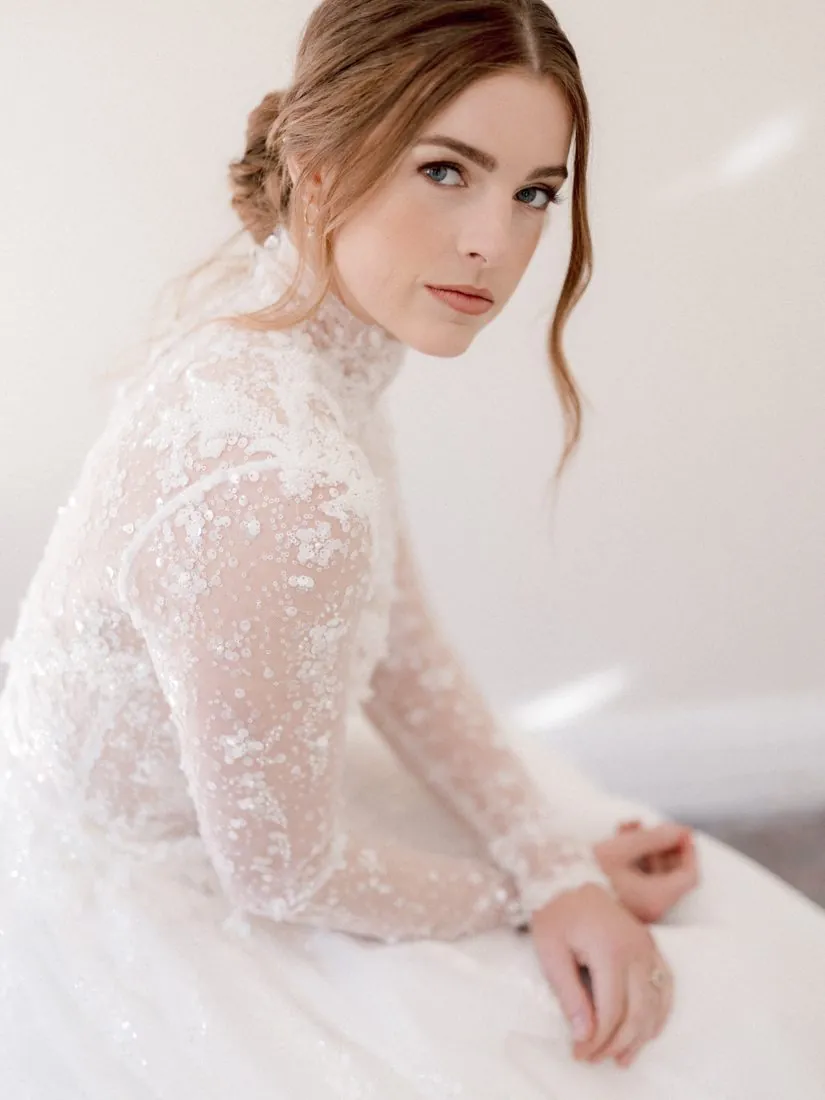
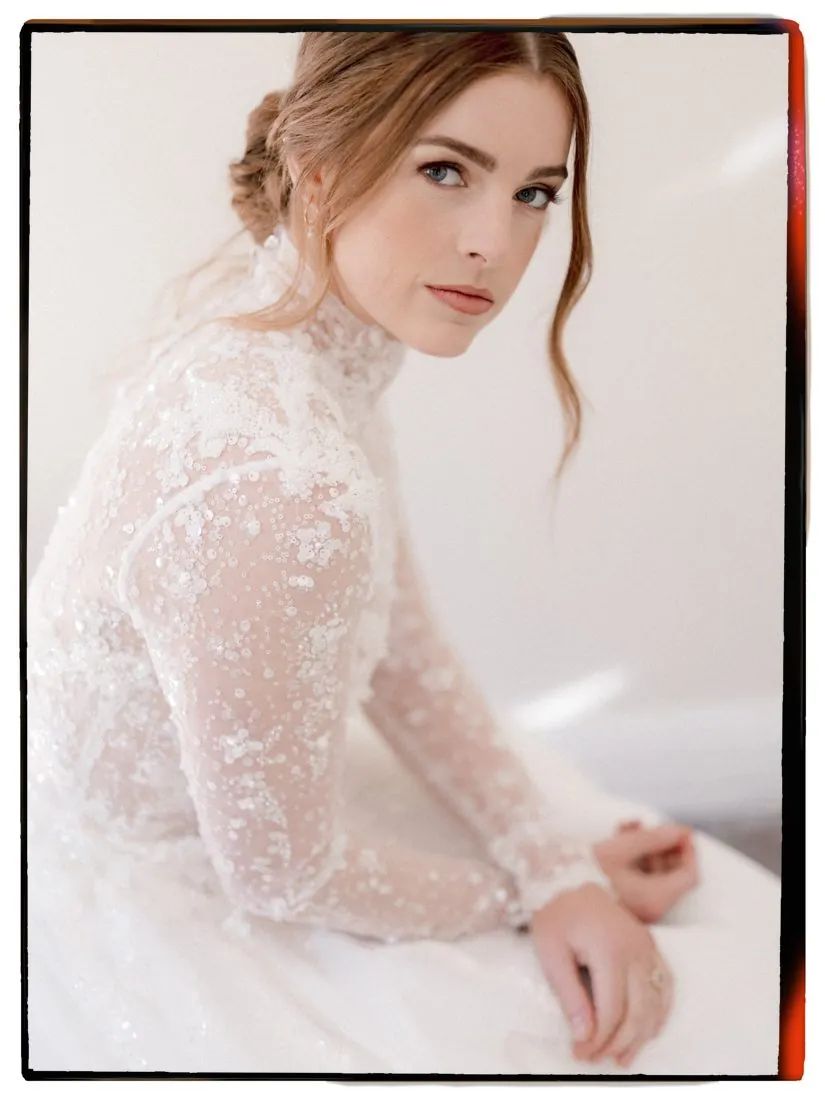 BeforeAfter
See it in action
Browse the thumbnails inside the panel. One click and the border appears on your photograph, ready to export.
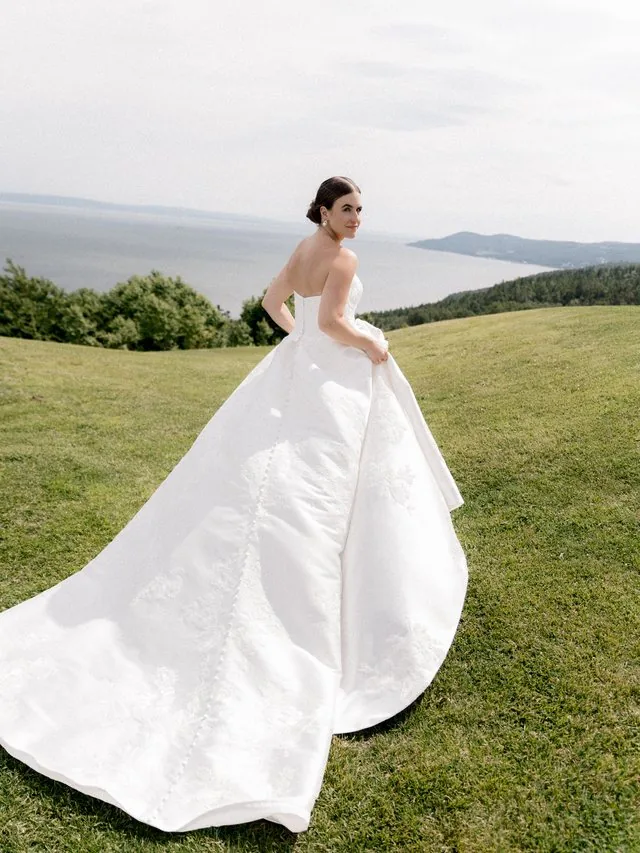
 Border applied
Illustration of the panel, using the real border thumbnails.
Up close
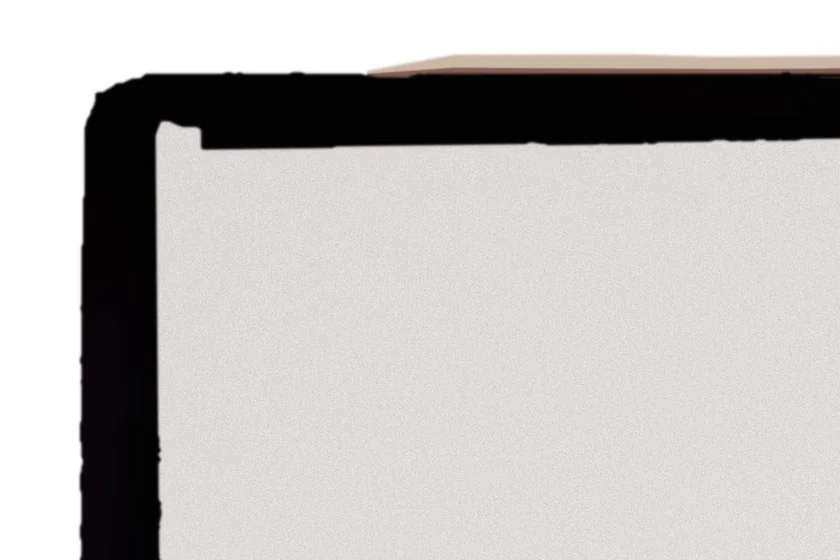
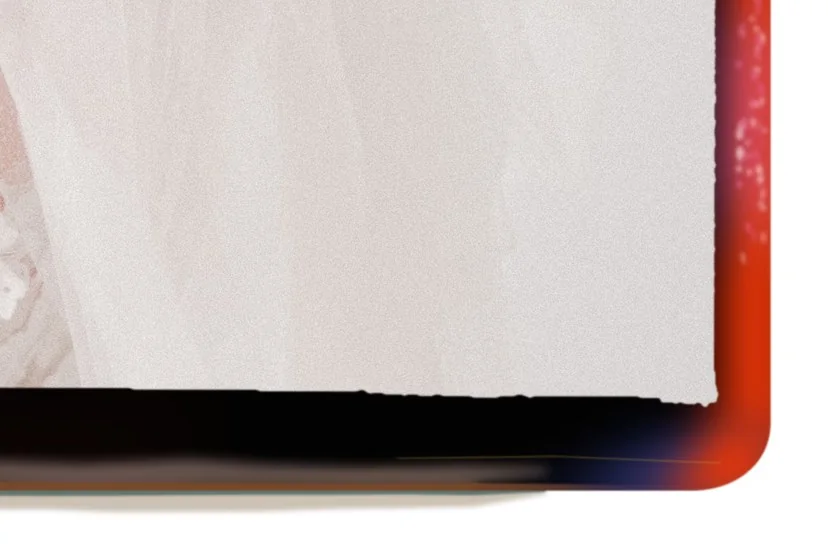
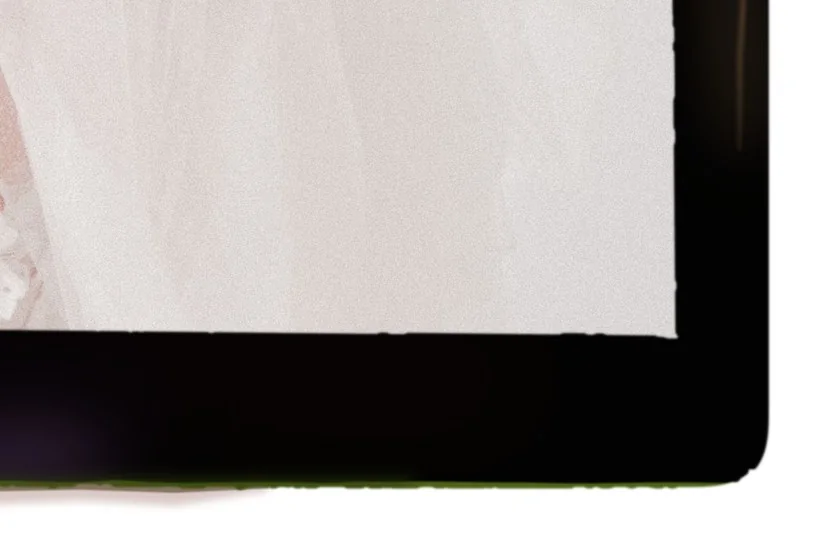
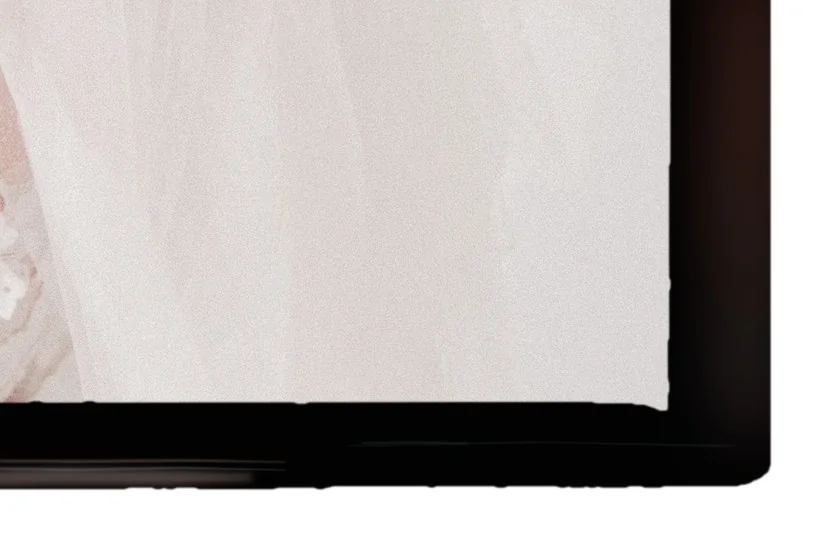
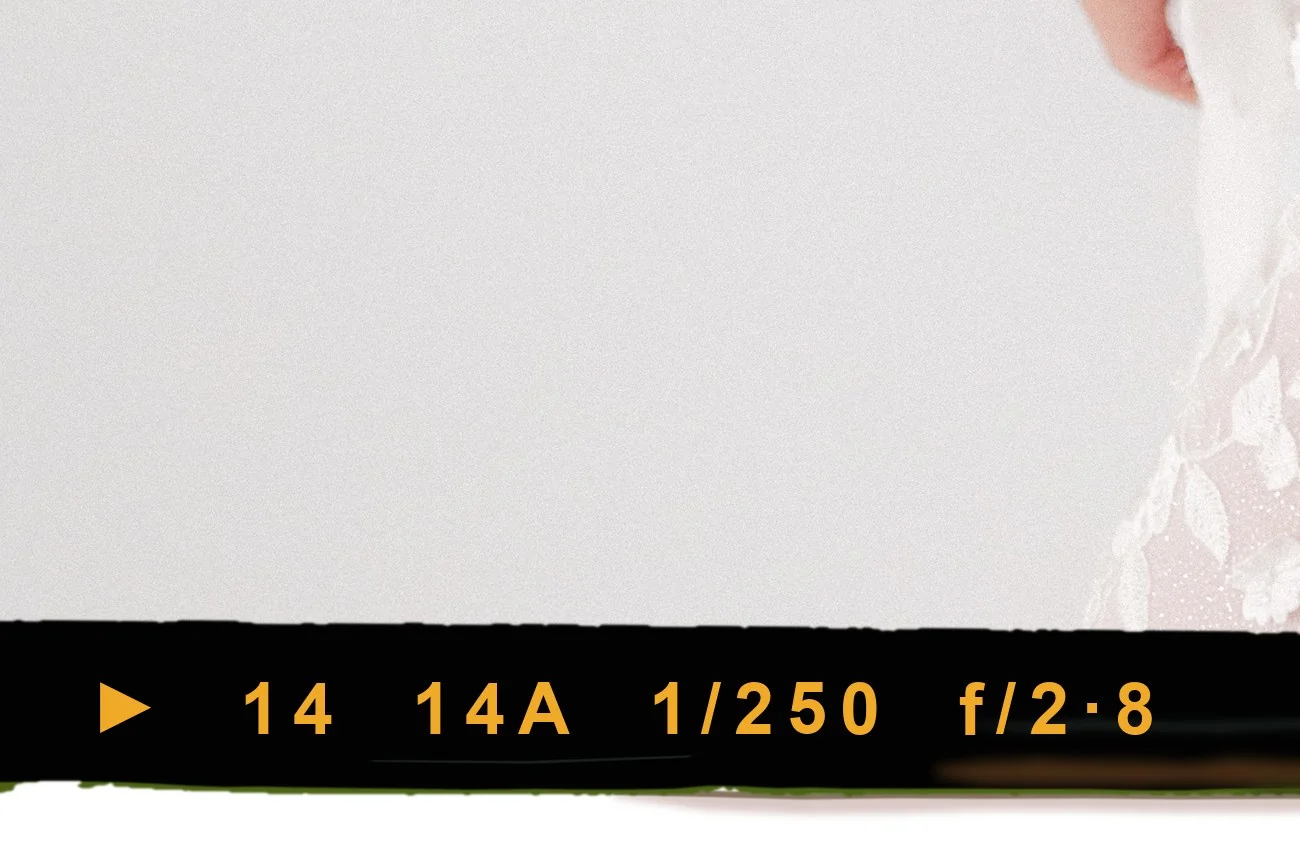
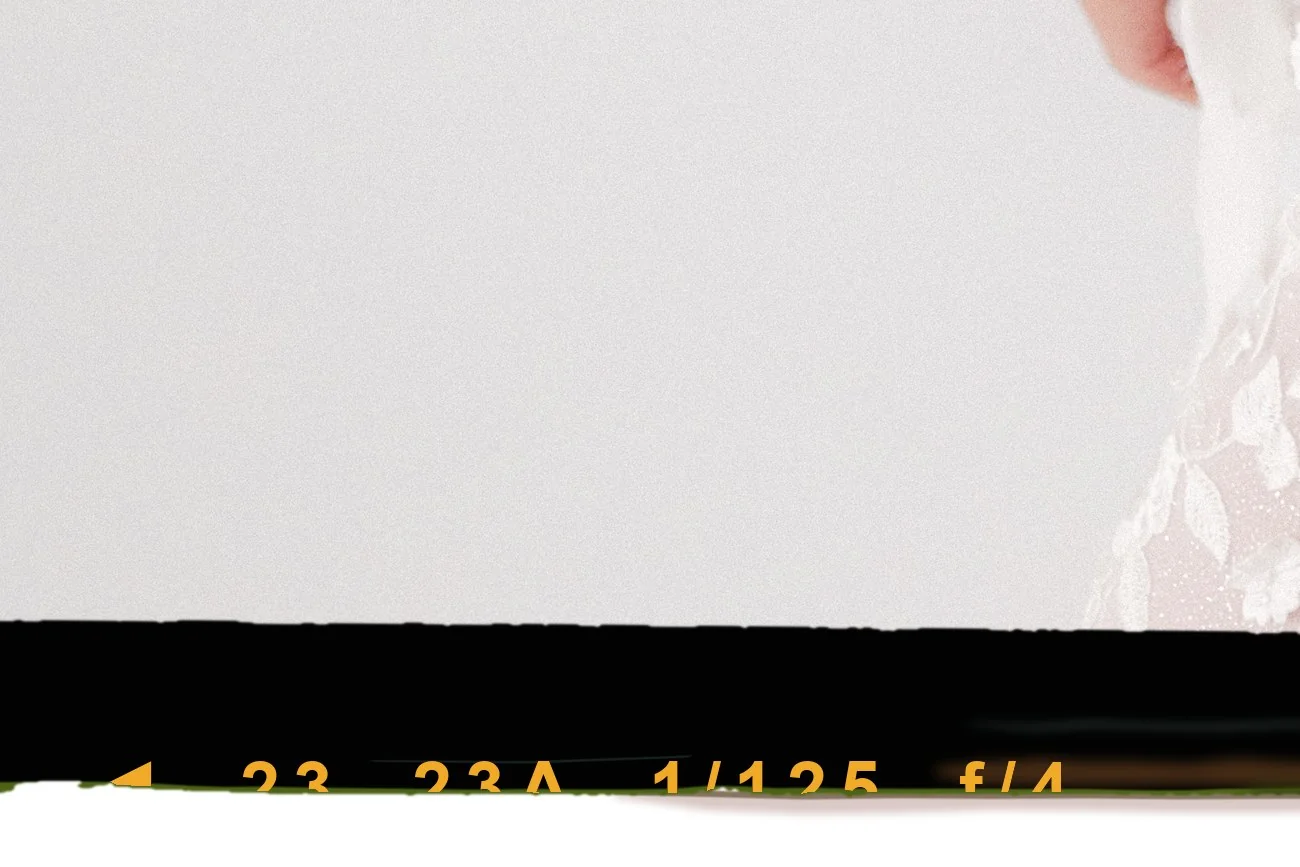
These are real borders at close range: uneven edges, different thicknesses, and film text that is sometimes complete and sometimes cut by the edge, just like a roll of film.
Additional border collections are planned. They will install right inside the plugin with Add more borders, next to the 20 Core borders you already have.
Inside Photoshop
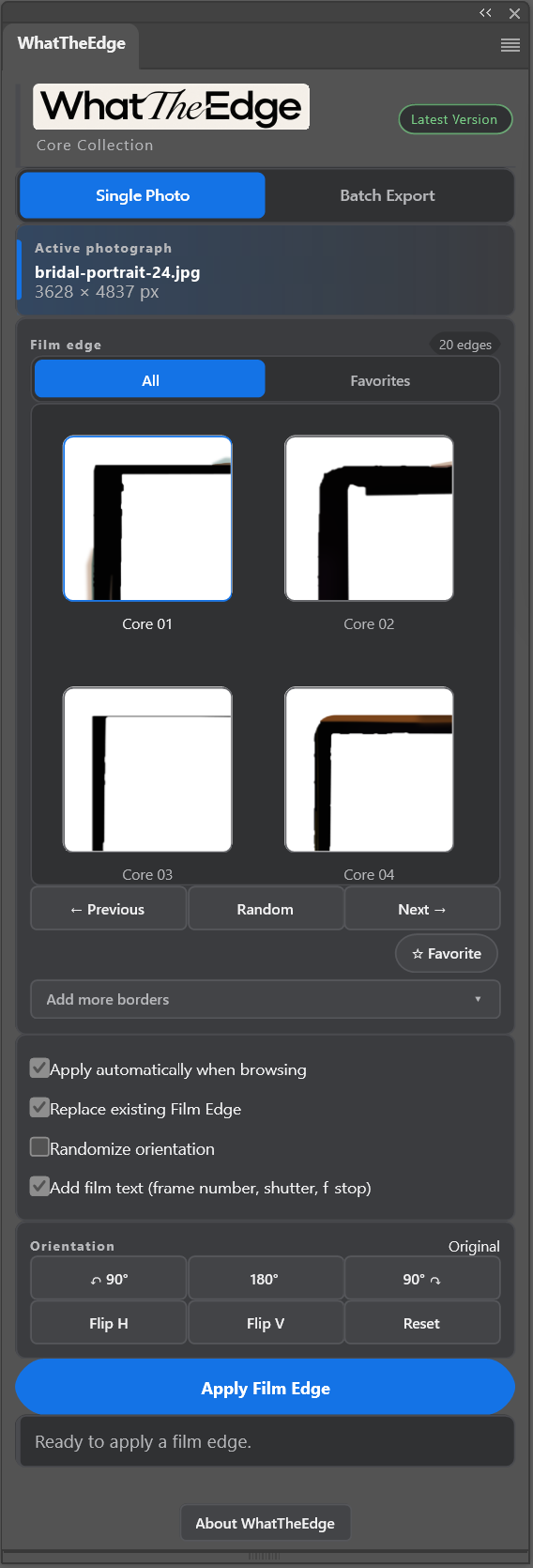
WhatTheEdge docks beside your photograph and shows what is open. Switch between Single Photo and Batch Export at the top.
Flip through the borders with Previous, Next and Random, or tap a thumbnail. With Apply automatically on, the border appears on your photograph as you browse.
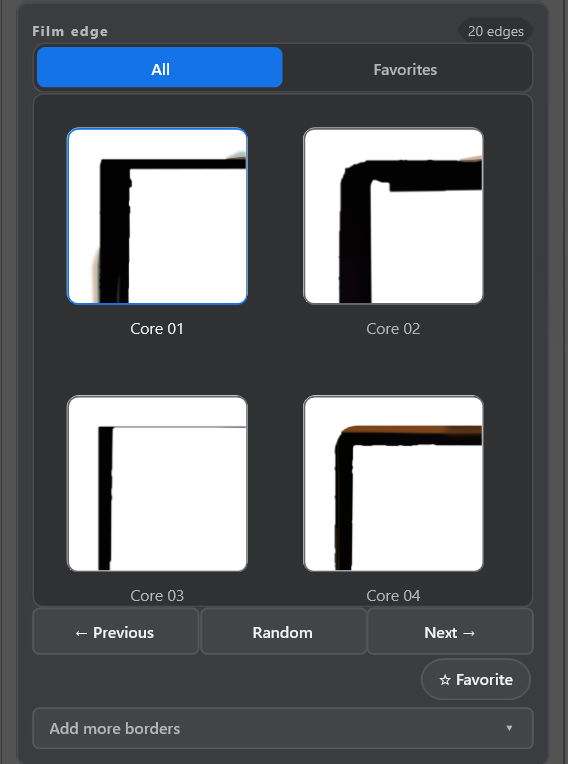
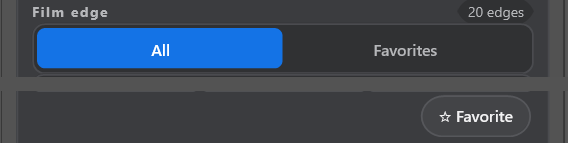
Tap Favorite on any border you love. Then switch the browser from All to Favorites, and Previous, Next and Random only move through your own short list.
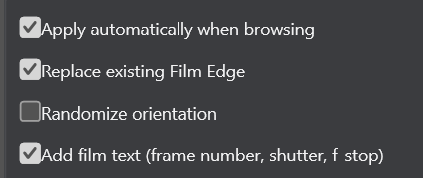
Apply automatically while you browse, replace the previous border, randomize the orientation, or add film text.
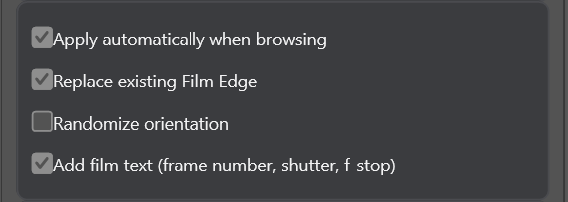
Tick Add film text and the plugin prints a frame number, shutter speed, f-stop and an arrow marker on the film edge, in amber like a real negative. In Batch Export, tick Add random film text and every photograph gets its own.
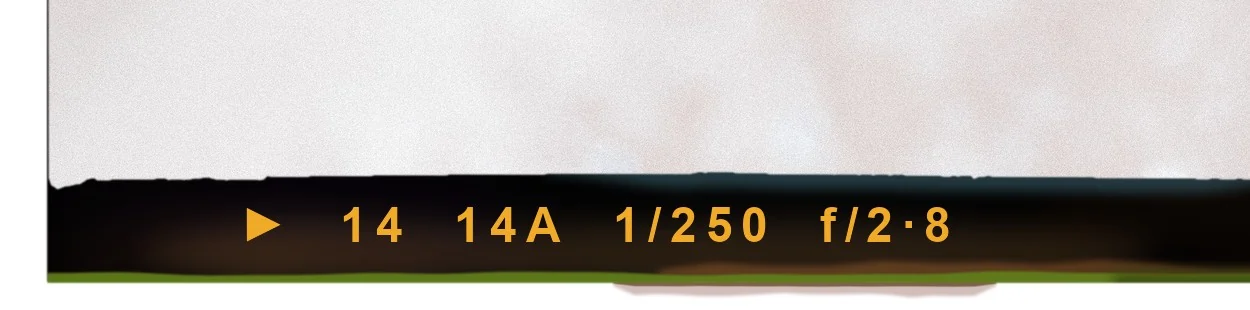 Example
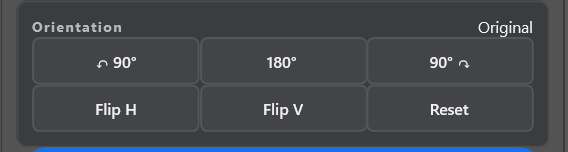
Turn the border 90 or 180 degrees, flip it horizontally or vertically, and reset in one click. The border changes, never your photograph.
Press Apply Film Edge. It is a single step in Photoshop's history, so one undo takes it back. A short message confirms what happened.
New film border collections are on the way. When they arrive, you add them right here with Add more borders, and they join the 20 you already have.
 Coming soon
The whole panel
 12345
Batch Export
Point WhatTheEdge at a folder of JPEGs and let it work through them while you do something else.
Illustration of the Batch Export tab.
What you get
Twenty scanned core borders, and many ways to make each one unique every time you apply it: random border, rotation, flips and optional film text.
Browse the collection and the border appears on your open photograph. Choose another to swap it.
Point it at a folder of JPEGs. Randomize borders, rotation and flips, and export finished copies.
Add frame numbers, shutter speed and f-stop on the film edge, the way a real roll looks.
Turn the border 90 or 180 degrees, flip it, or let the plugin randomize it for you.
Vertical or horizontal, the border is fitted to your image. Your photograph's pixel dimensions never change.
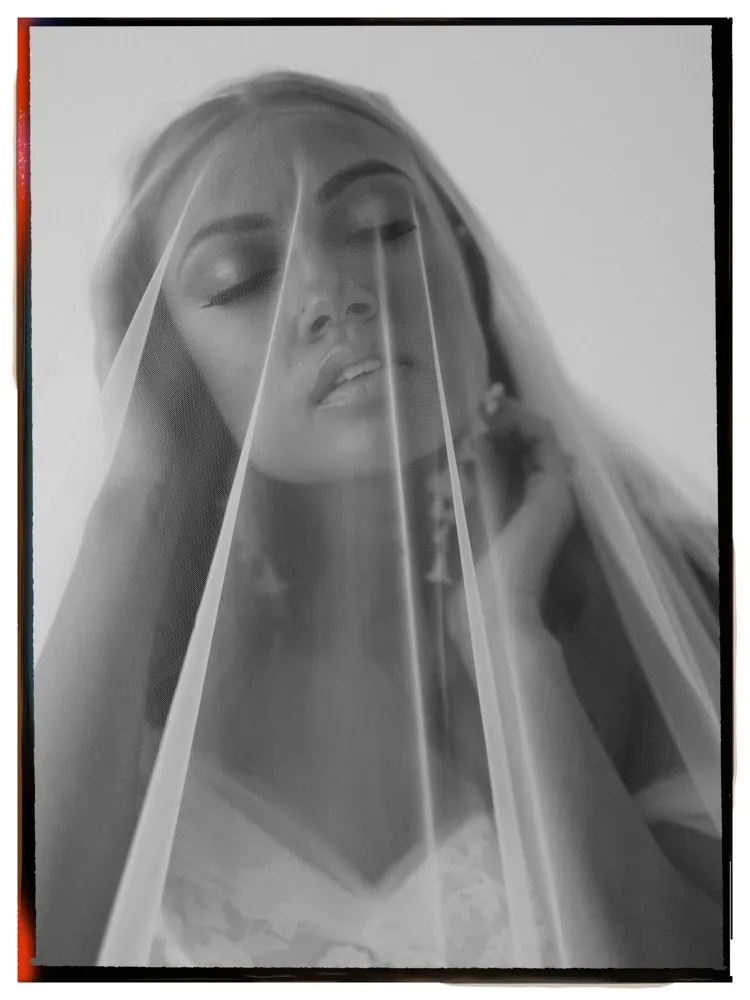
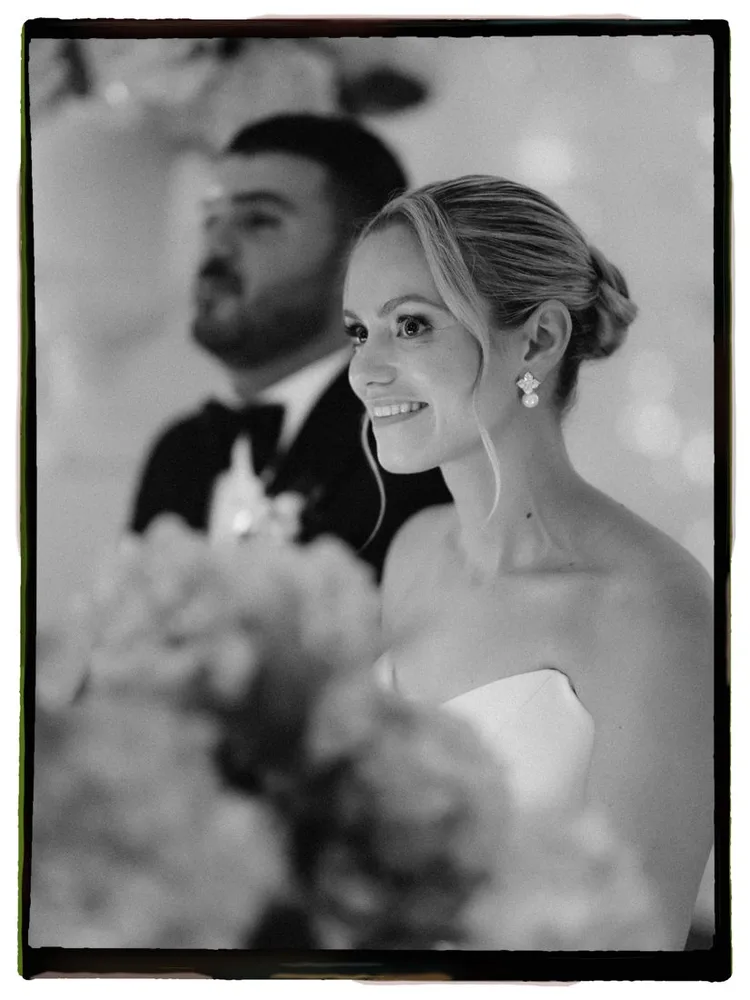
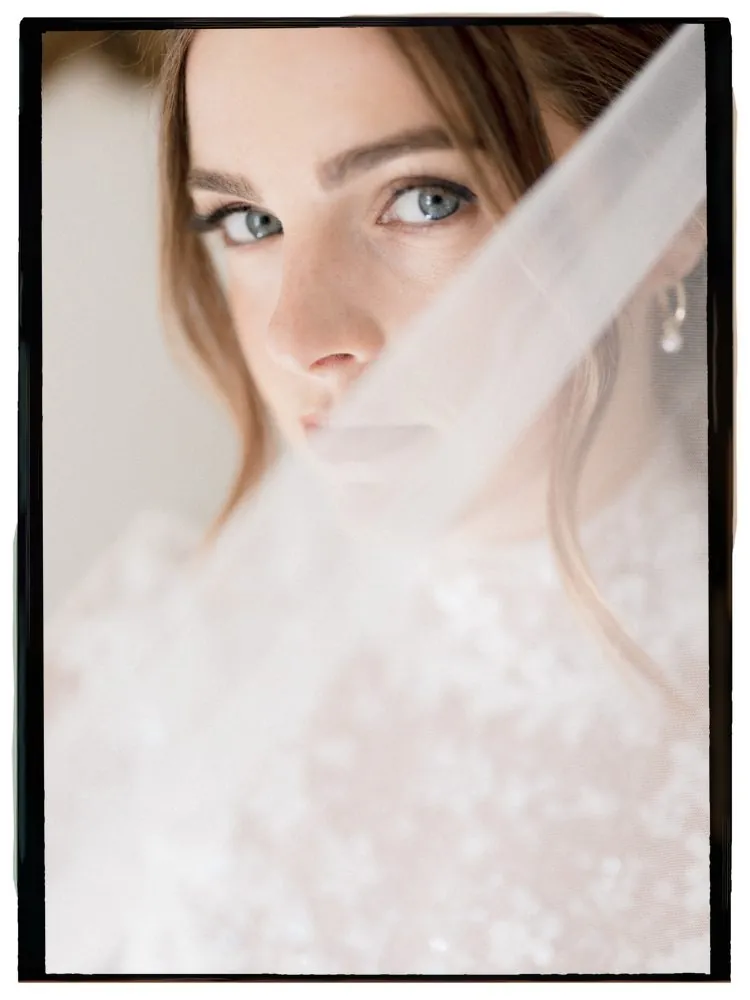
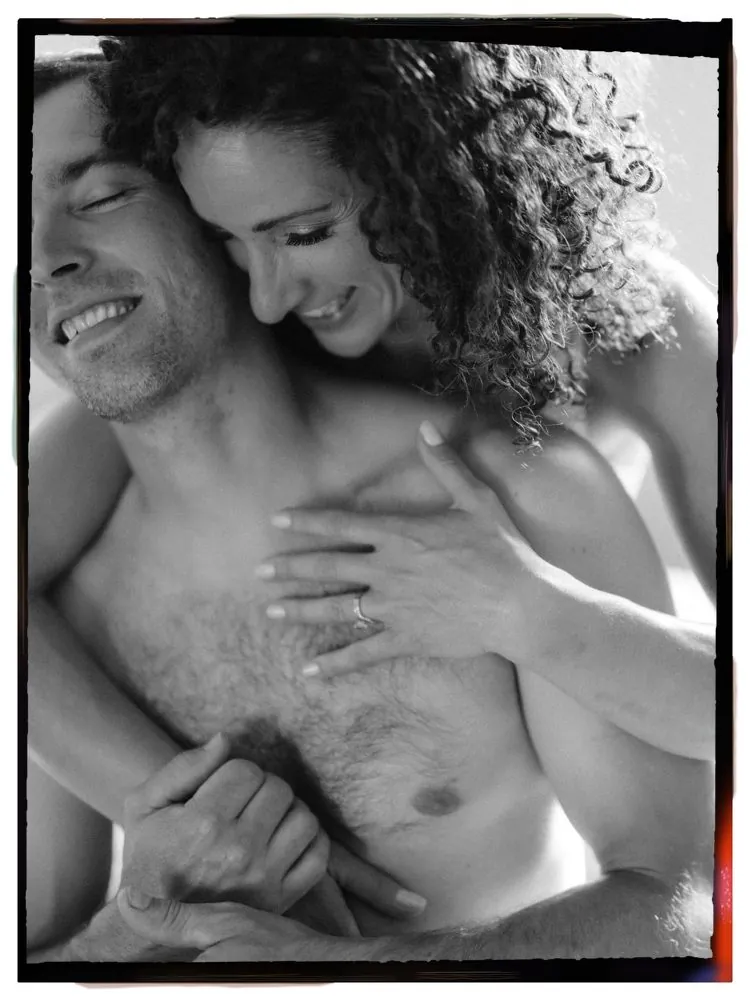
Real frames, on real photographs.
How it works
Pay once. You receive a license key by email and a link to download the installer.
Double-click the downloaded file. Adobe Creative Cloud installs it into Photoshop.
Open WhatTheEdge from the Plugins menu, paste your license key, and start adding borders.
Pricing
WhatTheEdge for Photoshop
$59one time, USD
Secure checkout by Dodo Payments. Your license key arrives by email. Questions? Visit the Help page.
Questions
Photoshop 23.3 (2022) or newer, on Windows or macOS. WhatTheEdge installs through Adobe Creative Cloud.
In Single Photo, any photograph you have open in Photoshop. Batch Export reads JPEG files (.jpg and .jpeg). Images under 350 pixels on the short side, images with transparent areas, and blank or solid-color images are not supported.
Yes. Each border is fitted to your photograph's exact width and height, so it works on vertical, horizontal and square images. You can also rotate or flip the border to suit the composition.
Your photograph's pixels and dimensions stay as they are. In Batch Export, the plugin saves new JPEG copies to a separate folder and never overwrites your originals.
In Single Photo, applying a border is one step in Photoshop's history, so you can step backward to remove it. The border and your visible layers are combined into one layer, so keep a copy of your layered file if you want to edit it later.
There is no trial version. Instead, every purchase comes with a 7-day money-back guarantee. If it isn't for you, email us and you get a refund.
Each license key works on 2 computers, for example your desktop and your laptop.
Open About in the plugin on the old computer and choose Deactivate License, then enter the same key on the new one. If the old computer is gone, open the customer portal from your purchase email, click View Key and press Deactivate next to that computer. You can do this yourself at any time.
You need one to activate, and the plugin checks your license when it starts. If you go offline, WhatTheEdge keeps working for up to 14 days.
When a new version is available, the panel tells you. Click the notice, open the download page, and install the new file the same way as the first time.
Your key is in the email you received after your purchase. If you cannot find it, write to us and we will send it again.
Yes. More film border collections are planned and will install inside the plugin through Add more borders. Details will be announced on this page.
The Help page walks you through installing the plugin, entering your license key, moving to a new computer and fixing common problems.
Yes, within 7 days of purchase. Write to hello@cagdasyoldas.com and we will refund you to your original payment method.
Have another question? Write to hello@cagdasyoldas.com and we will get back to you.
WhatTheEdge for Photoshop
Twenty real film borders, one click, and your photograph stays exactly as it is.