






WhatTheEdge Help
Install, activate and get going.
Everything you need to set up WhatTheEdge in Photoshop, in plain steps. If something is unclear, write to hello@cagdasyoldas.com.
1. Install the plugin
You need Photoshop 23.3 (2022) or newer and the Adobe Creative Cloud desktop app, which is installed with Photoshop.
- After your purchase, open the email from us and click Access in your customer portal. The portal shows your installer download and your license key.
- In the portal, click View next to the installer and download the file ending in .ccx. Click View Key next to the license key and keep that page open, because you will need the key in a moment.
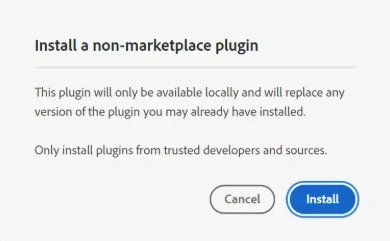
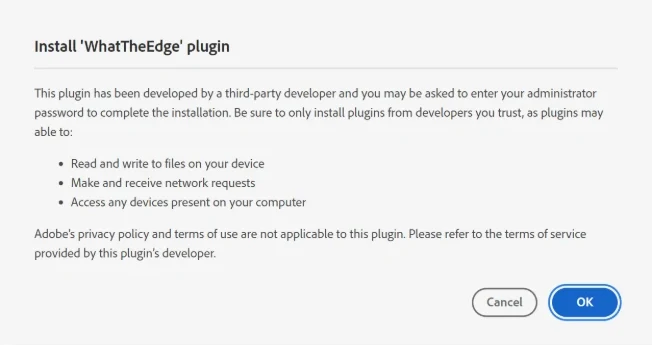
- Double-click the downloaded .ccx file. Adobe Creative Cloud opens and shows two confirmation windows: Install a non-marketplace plugin, then Install WhatTheEdge plugin. Both are normal for plugins that are not sold in Adobe's marketplace. Click Install, then OK. Windows may ask for your administrator password.
- Close Photoshop completely and open it again.

If double-clicking the file does nothing, open the Adobe Creative Cloud desktop app, go to Stock & Marketplace, then Plugins, then Manage plugins, and look for the option to install a plugin from a file.
2. Enter your license key
- In Photoshop, open the Plugins menu and choose WhatTheEdge.
- The panel asks for your license key. Copy the key from your email and paste it in.
- Press Activate. You need an internet connection for this step.
Each key works on 2 computers. After activation the plugin checks your license each time it starts. If you go offline, it keeps working for up to 14 days.
3. Add your first border
- Open a photograph in Photoshop.
- In the WhatTheEdge panel, tap a border thumbnail, or use Previous, Next and Random.
- Press Apply Film Edge. One undo takes it back.
Batch Export
Choose the Batch Export tab, pick a source folder of JPEGs and a different export folder, set the options, and press Run Batch. Your original files are never changed.
What is not supported
Images under 350 pixels on the short side, images with transparent areas, and blank or solid-color images.
4. Moving to a new computer
- On the old computer, open the WhatTheEdge panel and choose About, then Deactivate License.
- On the new computer, install the plugin and enter the same key.
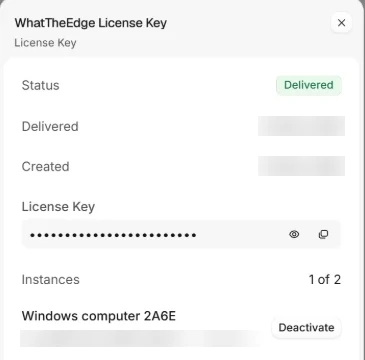
If you can no longer open the plugin on the old computer, free it yourself from the customer portal. Open your purchase email, click Access in your customer portal, click View Key, and press Deactivate next to the computer you no longer use. Then enter the key on the new computer.
5. Updating the plugin
When a new version is available, the panel shows a notice. Click it, open the download page, and install the new .ccx file the same way as the first time. Your license stays active.
Payments, receipts and invoices
Your payment is handled by Dodo Payments, our online reseller and Merchant of Record. That is why the checkout page, your receipt and your license key emails come from Dodo Payments, and why your bank statement may show a Dodo Payments name instead of Cagdas Yoldas Photography.
Your receipt and invoice are in the same customer portal as your license key. Open your purchase email and click Access in your customer portal. Sales tax is calculated at checkout based on your billing country.
For refunds, see the Refunds answer below. We handle refund requests ourselves, and Dodo Payments returns the money to your original payment method.
6. Fixing common problems
The plugin does not appear in the Plugins menu
Restart Photoshop. If it is still missing, install the .ccx file again and check that Creative Cloud finished without an error.
Activation fails
Check your internet connection and that you pasted the whole key without extra spaces. If you see a message that the limit of 2 computers is reached, open the customer portal from your purchase email, click View Key, and press Deactivate next to a computer you no longer use. Then try again. If you still cannot activate, write to us.
The panel says my license is locked
Connect to the internet and restart Photoshop so the plugin can check your license. If it is still locked, write to us with the email address used for the purchase.
I lost my license key
Your key is in the email you received after your purchase. If you cannot find it, write to us and we will send it again.
Refunds
You can ask for a refund within 7 days of purchase by writing to hello@cagdasyoldas.com.
Still stuck?
Write to hello@cagdasyoldas.com and tell us your operating system, your Photoshop version and what you see. We will help you.